More Session Tools
A few more tools for moving between sessions and managing how much history each one is carrying, reachable from the dashboard or from inside a session.
Bookmark a session
Press Ctrl+Space, then H to bookmark the current session into the next
open slot — there are nine. Ctrl+Space, then h opens the bookmark
picker, showing all nine slots and what's in each; from anywhere, a digit
key 1–9 jumps straight to that slot's session. Ctrl+Space, then M
removes the current session's bookmark. Once all nine slots are full,
bookmarking a new session evicts the oldest one. A slot pointing at a
session that's since been deleted clears itself the next time you try to
jump to it.
Resume a harness's own saved transcripts
Press S on a Claude, Codex, or OpenCode feature or session to browse that
harness's own saved conversation history and resume one in a new AMF
session — including transcripts from before AMF started tracking the
feature, and even for a stopped feature (the picker starts it for you). Pi
has no saved-session storage AMF can read, so S isn't offered there. See
Choosing a Harness for the rest of what varies by
harness.
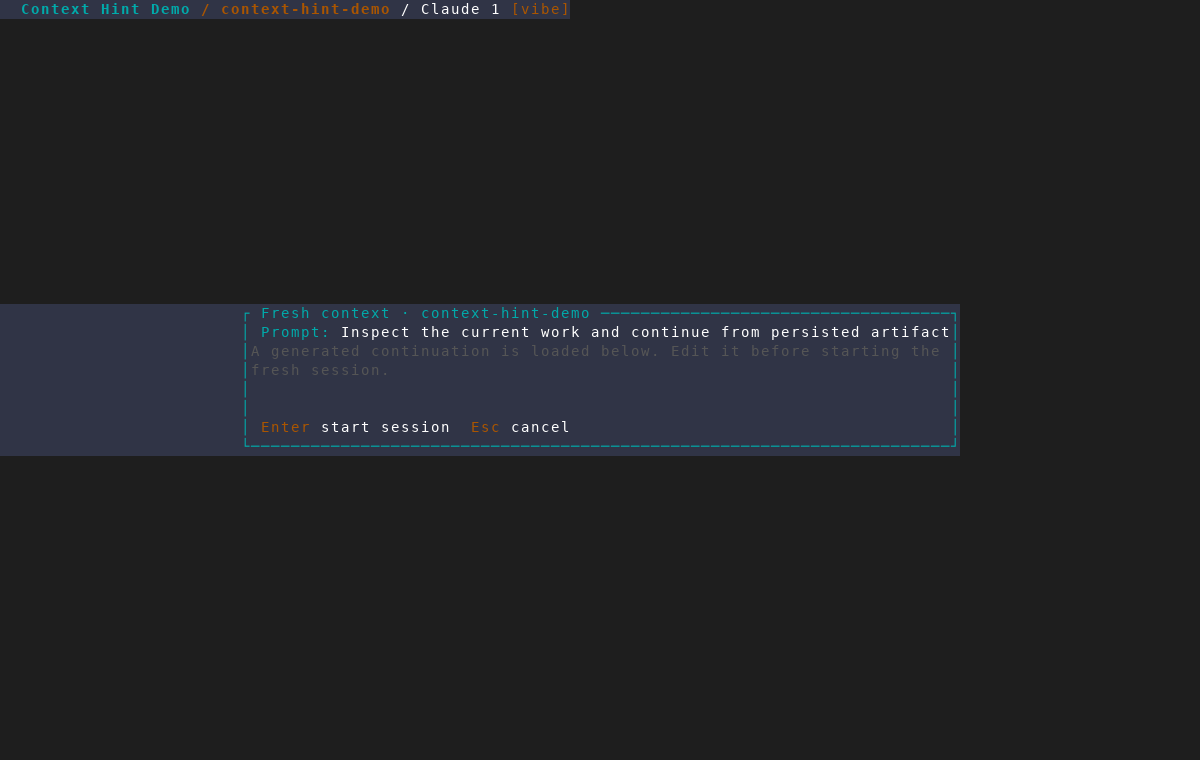
Start a session with a fresh context
A long-running session's history counts against the model's context budget
even once most of it is no longer relevant. Press Ctrl+Space, then
Shift+F from any agent session to open an editable prompt: type what the
new session should do, and AMF starts a brand-new session in the same
feature, seeded with the feature's plan file (if any), a sample of the
branch's changed files, and your instruction — left unsent in the compose
box for review, the same way Learning Mode hands off an escalated answer.
Ctrl+Space, then Shift+X dismisses the sidebar's context-usage hint
without starting a session. See
Track context and usage in the sidebar
for when AMF surfaces that hint on its own — pressing Shift+F there
pre-fills the prompt with a generated continuation instruction instead of
starting from a blank one.
Remote Control status
Claude Code's own Remote Control (research preview, v2.1.51+) bridges a
session to claude.ai/code and the Claude mobile app. When it's active, AMF
shows a [remote ●] badge on the session. Ctrl+Space, then c copies the
session's claude.ai URL when Claude has printed it as visible text;
Ctrl+Space, then Shift+O opens it. To turn it on or off, type Claude's
own /rc in the session. Remote Control is Claude-only and unavailable on
z.ai / third-party-provider sessions.
In a session, Ctrl+Space, then Shift+C and Shift+Q belong to AMF's own
phone companion instead: they turn its server on or off and show the pairing
QR code, exactly as on the dashboard.
Icons for custom sessions
When adding a custom session (s, or the config wizard's Custom Sessions
category — see Configuration), pick from 14
curated Nerd Font icons — Server, Database, Docker, and so on — or type any
glyph or emoji of your own.